What the tool does
- It recompresses images. It looks for grayscale and RGB images inside the PDF (JPEG or losslessly compressed) and saves them again as JPEG at a lower quality and, on most levels, a smaller pixel size. If a new image wouldn't be smaller than the old one, the old one is kept.
- It leaves everything else as it is. Text stays selectable, and in our test the title, author, bookmarks and form field of the original file were all still there afterwards.
- It never makes a file bigger. If the result isn't smaller, you get your original file back unchanged.
- It can convert pages to images as a last resort (see below). That gives the biggest saving for scans, but the text is no longer selectable.
What it doesn't do
- It doesn't re-encode CMYK images, which are common in scanned or professionally printed statements. Those PDFs show a "Saved less than 5%" note instead.
- It doesn't shrink fonts or text. A text-only PDF stays about the same size.
- It doesn't open password-protected PDFs. You'll see "This PDF is password-protected. Remove the password first." Use Unlock PDF with the password you already have, then compress the unlocked copy.
How to compress a PDF
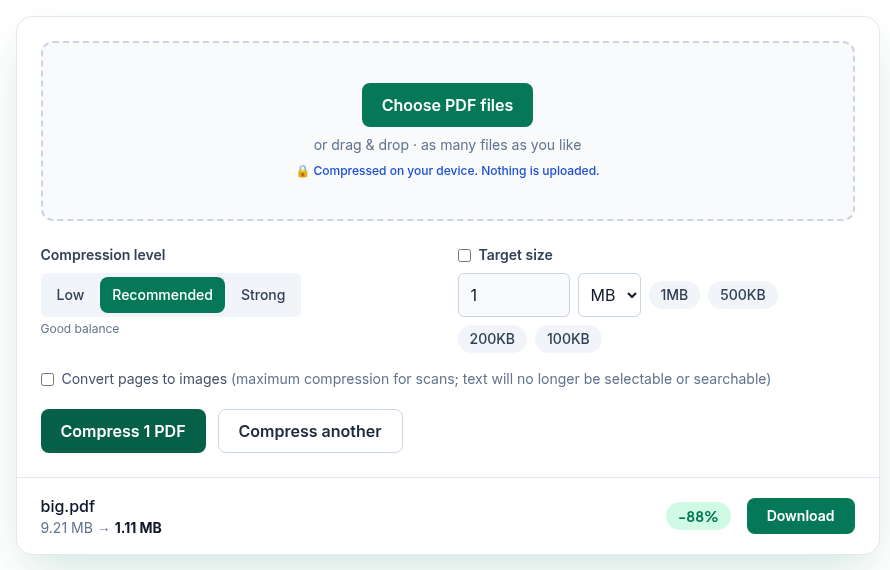
- Open Compress PDF and choose one or more PDF files, or drop them on the page.
- Pick a compression level: Low (best quality), Recommended (good balance) or Strong (smallest file).
- Or tick Target size and enter a size in KB or MB, or click one of the presets: 1MB, 500KB, 200KB or 100KB. The target takes priority over the level.
- Click Compress. Each file shows its old size, its new size and the percentage saved.
- Click Download for each file, or Download all if you compressed several. Files are saved as
<name>-compressed.pdf.
What each level changes
These are the settings in the tool's code. "Size" is the pixel size of each image relative to the original.
| Level | JPEG quality | Image size |
|---|---|---|
| Low | 80% | 100% (unchanged) |
| Recommended | 60% | 85% |
| Strong | 42% | 55% |
With a target size, the tool starts at 80% quality and full size and steps down (70%, 60%, 50% and so on, down to 25% quality at 25% size) until the file fits. If it still can't reach the target, it tells you: "We couldn't reach your target size."
What we found when we tested it
We ran the live tool on October 21, 2026 (PT) in headless Google Chrome 155 on Linux, with sample files we made for the test. Your results will be different: the saving depends entirely on what's inside your PDF.
| Test file | Setting | Result shown by the tool |
|---|---|---|
| big.pdf: 6 pages, each one 2400×3200 photo (9,660,923 bytes) | Low | 9.21 MB → 2.49 MB, -73% |
| big.pdf | Recommended | 9.21 MB → 1.11 MB, -88% |
| big.pdf | Strong | 9.21 MB → 430 KB, -95% |
| big.pdf | Target size 1MB | 9.21 MB → 714 KB, ✓ under target, -92% |
| 3-page text PDF with a title, author, bookmarks and a form field (2,790 bytes) | Recommended | 3 KB → 2 KB, -36% |
| 1-page CMYK scan (4,547,222 bytes) | Recommended | 4.34 MB → 4.34 MB, 0%, with the "Saved less than 5%" note |
| Same CMYK scan | Convert pages to images | 4.34 MB → 301 KB, -93% |
What we checked in the downloaded files:
- In the Recommended result for big.pdf, each 2400×3200 image became 2040×2720 (85%), as the table above says.
- The text PDF kept its title, author, bookmarks, form field and selectable text.
- When we converted the text PDF to images, the result would have been larger, so the tool returned the original file unchanged and said so.
If the file barely gets smaller
- "Saved less than 5%: its images use a format we don't re-encode (for example CMYK color…)." Click Convert pages to images in the result. In our CMYK test that took the file from 4.34 MB to 301 KB. The trade-off, as the tool warns: "as images, text is no longer selectable, searchable or copyable, and links stop working." Your original file isn't changed.
- The PDF is mostly text. There's little to remove. Text-heavy PDFs are usually small already; check whether the limit you're trying to meet really applies to this file.
- You need a specific size. Use Target size instead of a level. If even that can't get there, split the PDF into parts with Split PDF and send them separately.
- "Could not read this PDF." The file may be damaged or not really a PDF. Try opening it in another PDF viewer and saving a fresh copy.
Limits and privacy
- There's no file-count or file-size limit in the tool. Very large files depend on your device's memory, because the work happens in your browser.
- Compression runs in your browser tab using pdf-lib and pdf.js, which are loaded from pdfwrangle.com. Your PDF isn't uploaded. When we watched the network traffic during our tests, no request carried a file or a file name.
- The site does send anonymous statistics: Cloudflare Web Analytics counts page visits, and each use of the tool sends one event with the tool name, whether it worked, a file-size range such as "1–5 MB" and whether it was the live site. No event is sent if your browser has Global Privacy Control or Do Not Track turned on. Details are in the privacy policy.
FAQ
Will compressing make my text blurry?
No. Only images are recompressed. Text and fonts are copied as they are, unless you choose Convert pages to images, which turns each page into a picture.
Why did my PDF only shrink by 0%?
Either its images are in a format the tool doesn't re-encode, such as CMYK, or it has no large images at all. The result shows a note explaining which. For scans, Convert pages to images usually helps.
Can I compress a PDF to exactly 1 MB?
You can set 1 MB as a target, and the tool lowers quality step by step until the file is under it. In our test, a 9.21 MB photo PDF came out at 714 KB. It aims to get under the target, not to hit it exactly.
Does compressing remove the title, author or other document properties?
No. In our test the document properties, bookmarks and form field were still in the compressed file. Converting pages to images creates a new PDF, so treat that version as a fresh file.
Can I compress several PDFs at once?
Yes. Choose several files. They're compressed one after another, and Download all saves every result.
Sources
- PDFWrangle Compress PDF, live tool and production code (
/_next/static/chunks/733.2fc9cff4e8d50699.js), checked October 21, 2026: https://pdfwrangle.com/compress-pdf - PDFWrangle privacy policy, sections 1 and 2: https://pdfwrangle.com/privacy
- PDFWrangle usage statistics script (fields sent, GPC/Do Not Track opt-out): https://pdfwrangle.com/stats.js
More guides
All PDFWrangle guides · How to Merge PDF Files and Put the Pages in Order · How to Split a PDF, Extract Pages or Delete Pages · How to Convert JPG and PNG Images to a PDF · How to Convert iPhone HEIC Photos to PDF · How to Remove a Password or Restrictions from a PDF · How to Sign a PDF by Drawing or Typing Your Signature