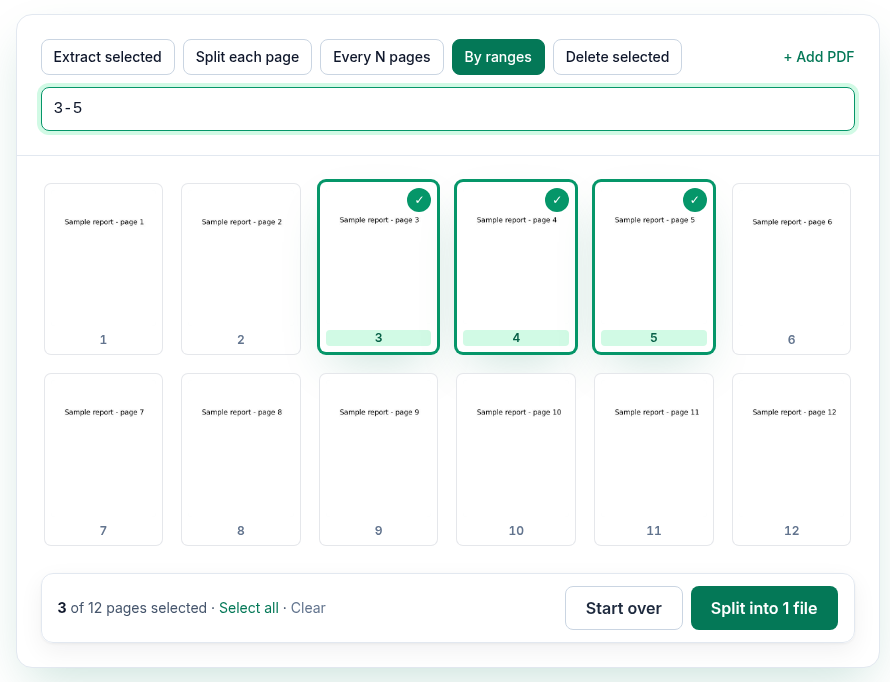
The five modes
| Mode | What you get | File name |
|---|---|---|
| Extract selected | One PDF with only the pages you clicked | <name>-extracted.pdf |
| Split each page | One PDF per page | <name>-pages-1.pdf, <name>-pages-2.pdf, … |
| Every N pages | A new file every N pages (2 by default) | <name>-pages-1-5.pdf, … |
| By ranges | One PDF per range you type | <name>-pages-1-3.pdf, … |
| Delete selected | One PDF without the pages you clicked | <name>-edited.pdf |
When there's more than one result, Download ZIP saves them all in one archive (<name>-pdfs.zip, or split-pdfs.zip when you've added several PDFs), and each file also has its own Download button.
How to split a PDF
- Open Split PDF and click Choose PDF, or drop a file on the page.
- Pick a mode from the row of buttons above the thumbnails.
- Tell the tool which pages:
- Extract selected / Delete selected: click page thumbnails. Shift-click selects a run of pages, and Ctrl+A (⌘+A on a Mac) selects all.
- By ranges: type ranges such as
1-3, 5, 8-10. Clicking thumbnails in this mode fills in the ranges for you. - Every N pages: enter the number of pages each file should have.
- Click the main button. It always says what will happen, for example "Split into 3 files" or "Extract 2 pages".
- Download the result, or Download ZIP if there are several.
Range syntax
- Separate ranges with commas (semicolons work too):
1-3, 5, 8-10. - A single number is a single page:
5. - Leave the end off to go to the last page:
8-means page 8 to the end. - Each range becomes its own file. To get one file with several separate pages, use Extract selected instead.
The tool explains a bad range rather than guessing. These are the messages we got on our 12-page file:
| You type | Message |
|---|---|
5-3 |
"5-3" goes backwards. Write it as 3-5. |
1-20 |
"1-20" is outside this PDF (pages 1–12). |
abc |
"abc" isn't a valid range. Use numbers like 1-3 or 5. |
What we found when we tested it
We ran the live tool on October 21, 2026 (PT) in headless Google Chrome 155 on Linux, on a 12-page test PDF we made (report.pdf, 72,675 bytes).
| Mode and input | Button | Output |
|---|---|---|
By ranges, 1-3, 5, 8- |
Split into 3 files | report-pages-1-3.pdf (3 pages), report-pages-5.pdf (1 page), report-pages-8-12.pdf (5 pages), in report-pdfs.zip |
| Every N pages, 5 | Split into 3 files | report-pages-1-5.pdf (5), report-pages-6-10.pdf (5), report-pages-11-12.pdf (2) |
| Split each page | Split into 12 files | report-pages-1.pdf to report-pages-12.pdf, 1 page each |
| Extract selected, pages 2 and 4 | Extract 2 pages | report-extracted.pdf, 2 pages |
| Delete selected, page 1 | Delete 1 page | report-edited.pdf, 11 pages |
Each output is a new PDF built from the copied pages. In our files, the Producer field was set to pdf-lib and the original document properties weren't carried over.
Working with several PDFs
You can add more files with + Add PDF. Split each page, Every N pages and By ranges apply to every file you've added. Extract selected and Delete selected work on the file that's currently shown; switch files with the file buttons above the thumbnails.
Troubleshooting
- "
is password-protected. Unlock it first with a password you know." Remove the password with Unlock PDF, then split the unlocked copy. - "You can't delete every page." Delete mode needs at least one page left. To keep only a few pages, switch to Extract selected.
- "Click the pages you want to extract." No pages are selected yet. Click at least one thumbnail.
- "Couldn't read
." The file may be damaged or not a real PDF. - Bookmarks are missing in the result. Each output is a new file, so bookmarks and document properties don't carry over.
Limits and privacy
- The tool takes any number of PDFs of any size. Large files depend on your device's memory.
- Splitting runs in your browser tab with pdf.js and pdf-lib. Your files aren't uploaded. When we watched network traffic during our tests, no request carried a file or a file name.
- The site sends anonymous statistics: Cloudflare Web Analytics counts page visits, and each use of the tool sends one event with the tool name, whether it worked and a file-size range. No event is sent if Global Privacy Control or Do Not Track is on. See the privacy policy.
FAQ
How do I get pages 1–3 and 8–10 in one file?
Use Extract selected and click pages 1, 2, 3, 8, 9 and 10. By ranges would give you two files, one per range.
How do I delete one page from a PDF?
Choose Delete selected, click the page and click Delete 1 page. You get <name>-edited.pdf without that page.
Can I split a PDF into single pages?
Yes. Split each page makes one file per page and offers them all as a ZIP.
Does splitting change the quality of the pages?
No. Pages are copied as they are, so text stays selectable and images aren't recompressed.
Is the original file changed?
No. The tool only reads your file and creates new downloads. The original stays where it was.
Sources
- PDFWrangle Split PDF, live tool and production code (
/_next/static/chunks/857.92e3f035050ef787.js), checked October 21, 2026: https://pdfwrangle.com/split-pdf - PDFWrangle privacy policy, sections 1 and 2: https://pdfwrangle.com/privacy
- PDFWrangle usage statistics script: https://pdfwrangle.com/stats.js
More guides
All PDFWrangle guides · How to Compress a PDF (and Why Some PDFs Won't Shrink) · How to Merge PDF Files and Put the Pages in Order · How to Convert JPG and PNG Images to a PDF · How to Convert iPhone HEIC Photos to PDF · How to Remove a Password or Restrictions from a PDF · How to Sign a PDF by Drawing or Typing Your Signature