Two kinds of PDF protection
- Open password (user password). The PDF asks for a password before it shows anything. You need that password to unlock it.
- Restrictions (owner password). The PDF opens without a password but blocks printing, copying or editing. PDFWrangle removes these restrictions without asking for any password.
The tool checks which kind your file has as soon as you add it, and only asks for a password when one is needed.
How to unlock a PDF
- Open Unlock PDF and click Choose PDF, or drop the file on the page. The tool shows "Checking protection…".
- What happens next depends on the file:
- It asks "Enter the PDF password". Type the password you were given and click Unlock PDF. You can show the password while typing to check it.
- It shows "Removing restrictions…". Nothing to type. The restrictions are removed automatically.
- It says "This PDF has no password or restrictions. It already opens normally." There's nothing to remove.
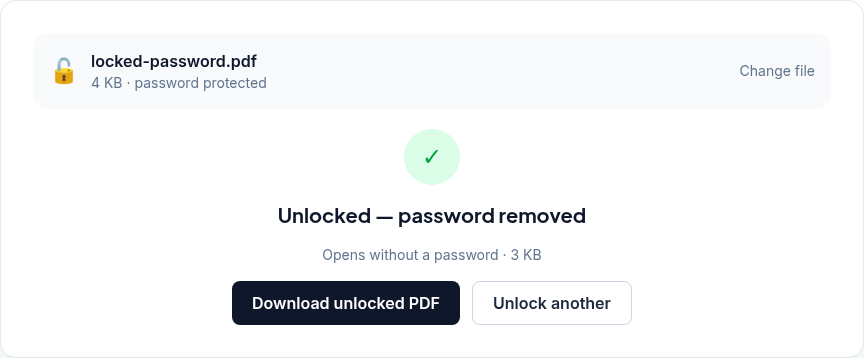
- When you see Unlocked — password removed (or Unlocked — restrictions removed), click Download unlocked PDF. The copy is saved as
<name>-unlocked.pdf. - If you added several files, click Next file to do the next one.
What we found when we tested it
We tested the live tool on October 21, 2026 (PT) in headless Google Chrome 155 on Linux. We made a 3-page sample PDF with a title, author and a filled-in form field, then used qpdf to make two protected copies with 256-bit AES encryption: one with the open password test1234, and one with no open password but with printing and copying blocked.
| Test | What the tool showed | Downloaded file |
|---|---|---|
| Open-password file, wrong password | "That password is incorrect. Check for typos and Caps Lock, then try again." | None |
| Open-password file, correct password | "Unlocked — password removed · Opens without a password · 3 KB" | locked-password-unlocked.pdf, 3,116 bytes |
| Restrictions-only file, no password entered | "Unlocked — restrictions removed" | locked-restrictions-unlocked.pdf, 3,116 bytes |
| Unprotected PDF | "This PDF has no password or restrictions. It already opens normally." | None needed |
| A text file renamed to .pdf | "Could not read this file. Is it a valid PDF?" | None |
We checked both unlocked files with qpdf --show-encryption: "File is not encrypted". Their title, author, form field and text were the same as in the original sample file.
Troubleshooting
- "That password is incorrect…" Check for typos and Caps Lock. If the sender told you how the password is made up, check what you typed against that.
- "This PDF couldn't be unlocked. It may be damaged or use an unsupported protection type." The file uses a kind of protection the tool doesn't support, or it's damaged. Ask the sender for an unprotected copy.
- "Could not read this file. Is it a valid PDF?" The file may be damaged or not actually a PDF. Download it again from the original source.
- You don't know the password. The tool can't help. Ask the sender for it or for an unprotected copy.
Before you share an unlocked statement
An unlocked bank statement or payslip opens for anyone who receives it. If you only need to show part of it, for example your name and address for proof of address, remove the rest first. InkOut is our redaction tool: it removes the text under each box rather than covering it.
Limits and privacy
- Use it only on files you own or are allowed to open. As the tool says, "We don't crack unknown passwords."
- No limit on file size or number of files in the tool; the practical limit is your device's memory.
- Unlocking runs in your browser tab using qpdf compiled to WebAssembly, which the page loads from pdfwrangle.com. Your file and password aren't uploaded. In our tests, no request carried a file, file name or password.
- The site sends anonymous statistics: Cloudflare Web Analytics counts page visits, and each unlock sends one event with the tool name, whether it worked and a file-size range. Passwords are never included. No event is sent if Global Privacy Control or Do Not Track is on. See the privacy policy.
FAQ
Can PDFWrangle unlock a PDF if I forgot the password?
No. You need the password to remove an open password. The tool doesn't guess or crack passwords.
My PDF opens fine but won't let me print. Do I need a password?
No. That's a restrictions-only PDF. Add it and the tool removes the restrictions without asking for a password.
Does unlocking change anything else in the PDF?
In our test, no. The unlocked copy had the same text, title, author and form field as the original.
Does it work with 256-bit AES encryption?
Yes. Our test files used 256-bit AES and both unlocked.
Is my password sent anywhere?
No. The password is used in your browser tab only and isn't included in any request, including the usage statistics.
Sources
- PDFWrangle Unlock PDF, live tool and production code (
/_next/static/chunks/448.35dafdc0b12720cd.js; qpdf WebAssembly at/v/qpdf-0.3.0.abd933f4cc.wasm), checked October 21, 2026: https://pdfwrangle.com/unlock-pdf - PDFWrangle privacy policy, sections 1 and 2: https://pdfwrangle.com/privacy
- PDFWrangle usage statistics script: https://pdfwrangle.com/stats.js
- qpdf manual, encryption options (how we made the test files): https://qpdf.readthedocs.io/en/stable/cli.html#encryption
More guides
All PDFWrangle guides · How to Compress a PDF (and Why Some PDFs Won't Shrink) · How to Merge PDF Files and Put the Pages in Order · How to Split a PDF, Extract Pages or Delete Pages · How to Convert JPG and PNG Images to a PDF · How to Convert iPhone HEIC Photos to PDF · How to Sign a PDF by Drawing or Typing Your Signature