Why iPhone photos are HEIC
Apple's iPhone 7 and later can capture photos in HEIF format (.heic files). Apple says HEIF offers "better compression than JPEG", so photos use less storage space. When you share photos by AirDrop, Messages or email to a device that doesn't support HEIF, Apple says they "might" be sent as JPEG instead, so you can't count on it (Apple Support).
How to convert HEIC to PDF
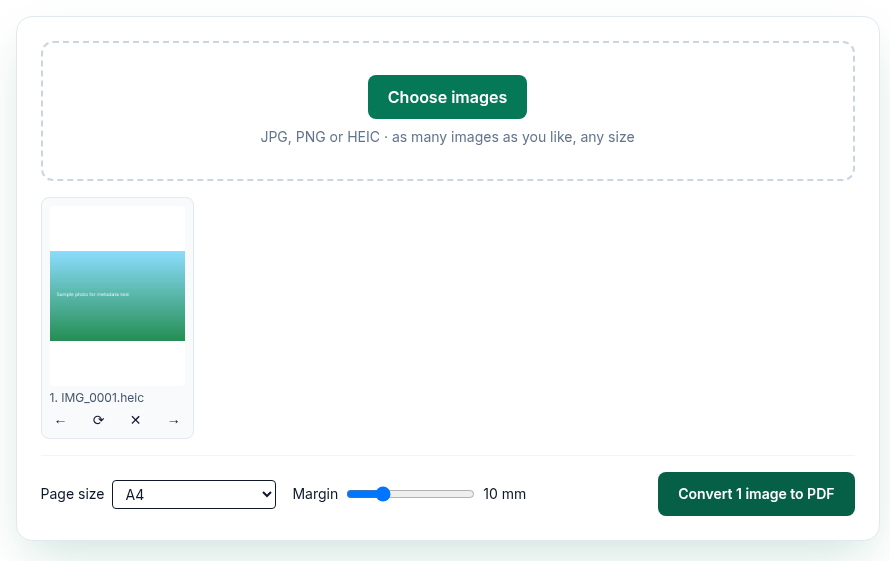
- Open HEIC to PDF. On an iPhone, open it in Safari.
- Tap or click Choose images and pick your photos. On an iPhone you can choose them from your photo library. Each photo shows "Decoding…" while it's converted in your browser; large photos can take a moment on older phones.
- Put the photos in order (drag, or use ← and →) and tap ⟳ to rotate any that are sideways.
- Choose a page size (A4, US Letter or Original image size) and a margin.
- Tap Convert N images to PDF. The PDF downloads as
images.pdf.
You can mix HEIC with JPG and PNG images in the same PDF. For details on page size, margins and how images are stored, see the image to PDF guide.
What we found when we tested it
We tested the live tool on October 21, 2026 (PT) in headless Google Chrome 155 on Linux, with a 1200×800 HEIC photo we made (18,900 bytes). We wrote a GPS position (40°41'21.12"N 74°2'40.20"W), camera make "ExampleCam" and model "Test Model 1" into it, and confirmed them with exiftool before the test.
- The PDF had one page with one 1200×800 JPEG image. The photo's pixel size wasn't reduced.
exiftoolfound no GPS position, make or model in the image we extracted from the PDF, and a search of the uncompressed PDF for "ExampleCam", "Test Model 1" and "GPS" found nothing.- The PDF's Creator and Producer were pdf-lib; there was no title or author.
So the location stored in a HEIC photo doesn't end up in the PDF. If you need the date or location for your records, keep the original photos too.
Troubleshooting
- A photo shows "Can't read". The file couldn't be decoded. On a Mac you can open it in Photos or Preview and choose File > Export to save it as JPEG (Apple Support), then add the JPEG.
- Decoding is slow. HEIC is decoded on your device, so large photos on older phones take longer. Add fewer photos at a time.
- The PDF is too large for an upload form. Run it through Compress PDF and check the new size.
- The photos come out sideways. Use ⟳ before converting.
Avoid HEIC next time
On iPhone or iPad, open Settings > Camera > Formats and choose Most Compatible. New photos are then saved as JPEG. To go back, choose High Efficiency (Apple Support). Photos you've already taken stay HEIC.
Limits and privacy
- No limit on the number or size of photos; the practical limit is your device's memory.
- HEIC photos are decoded with libheif, which the page loads from pdfwrangle.com, and the PDF is built with pdf-lib, all in your browser tab. Your photos aren't uploaded. During our test, no request left the site except Cloudflare's page-visit beacon, and none carried a photo or file name.
- The site sends anonymous statistics: Cloudflare Web Analytics counts page visits, and each conversion sends one event with the tool name, whether it worked and a file-size range. No event is sent if Global Privacy Control or Do Not Track is on. See the privacy policy.
FAQ
Do I need to convert HEIC to JPG first?
No. Add the HEIC files directly. They're decoded in your browser.
Does it work on an iPhone?
Yes. Open the page in Safari and choose photos from your library.
Is my photo's location included in the PDF?
In our test, no. The GPS position and camera details in the HEIC file weren't in the PDF.
Are my photos uploaded?
No. Decoding and PDF creation happen in your browser on your device.
Can I make my iPhone stop using HEIC?
Yes. Go to Settings > Camera > Formats and choose Most Compatible. New photos will be saved as JPEG.
Sources
- Apple Support, "Using HEIF or HEVC media on Apple devices" (devices, compression, sharing, Most Compatible setting, export on Mac), published December 5, 2025, checked October 21, 2026: https://support.apple.com/en-us/116944
- PDFWrangle HEIC to PDF, live tool and production code (
/_next/static/chunks/574.6096782d6c44bf17.js; HEIC decoder in/_next/static/chunks/e99863e0.6290cb84bf7aeef3.js), checked October 21, 2026: https://pdfwrangle.com/heic-to-pdf - PDFWrangle privacy policy, sections 1 and 2: https://pdfwrangle.com/privacy
More guides
All PDFWrangle guides · How to Compress a PDF (and Why Some PDFs Won't Shrink) · How to Merge PDF Files and Put the Pages in Order · How to Split a PDF, Extract Pages or Delete Pages · How to Convert JPG and PNG Images to a PDF · How to Remove a Password or Restrictions from a PDF · How to Sign a PDF by Drawing or Typing Your Signature