What the tool does
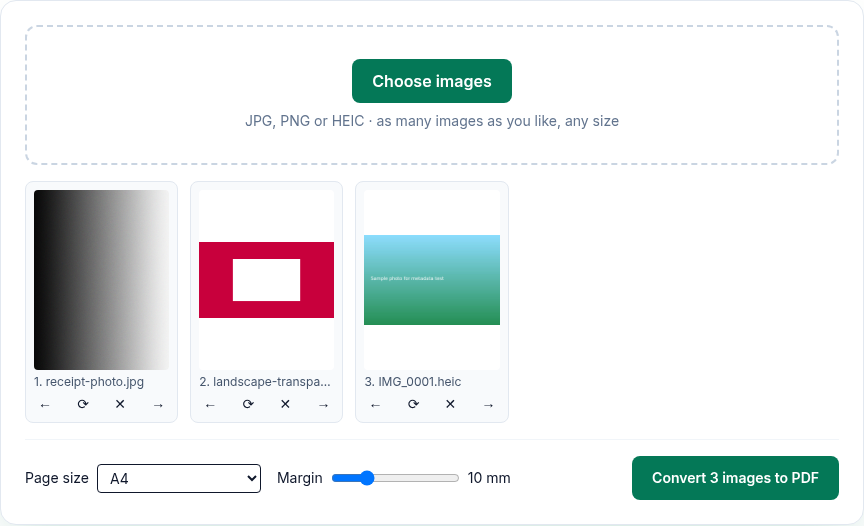
- It accepts JPG, PNG and HEIC (iPhone) images, and other image types your browser can open. You can add as many as you like, of any size.
- Each image becomes one page. You can drag images into order, or use ← and →, rotate with ⟳ (90° per click) and remove with ✕.
- Page size: A4, US Letter or Original image size. On A4 and Letter, a landscape image automatically gets a landscape page.
- Margin: 0 to 40 mm around each image (10 mm unless you change it). The image is scaled to fit inside the margin and centered, without stretching.
- The PDF downloads as
images.pdf.
What it changes in your images
- Every image is saved as a JPEG inside the PDF (at 92% quality), including PNGs. For photos you won't notice. For PNG screenshots or diagrams with sharp lines and small text, you may see slight JPEG softening around edges.
- Transparent areas become white. Images are drawn onto a white background first.
- Pixel size isn't reduced. In our test, a 3000×4000 photo was still 3000×4000 inside the PDF. If the PDF is too big, compress it afterwards with Compress PDF.
- Photo metadata isn't copied into the PDF. In our test, the GPS location, camera make and model of our sample photo weren't anywhere in the PDF (details below). If you need the date or location preserved, keep the original image files as well.
How to convert images to PDF
- Open Image to PDF and click Choose images, or drop them on the page. Each one shows "Decoding…" until it's ready.
- Put the images in order: drag them, or use ← and →. Click ⟳ on any image that's sideways.
- Choose Page size: A4, US Letter or Original image size.
- Set the margin. Use 0 if you want the image to reach the edge of the page (it touches at least two opposite edges; the aspect ratio is kept).
- Click Convert N images to PDF. The browser downloads
images.pdf.
What we found when we tested it
We ran the live tool on October 21, 2026 (PT) in headless Google Chrome 155 on Linux with three sample images we made: a 3000×4000 JPG photo (6,457,239 bytes) with a GPS position, camera make "ExampleCam" and model "Test Model 1" written into it; a 1600×900 PNG with a transparent rectangle in the middle; and a 1200×800 HEIC photo with GPS data.
| Setting | Page sizes in the PDF | Images inside |
|---|---|---|
| A4, default margin | Page 1: 595.28×841.89 pt (portrait A4). Pages 2–3: 841.89×595.28 pt (landscape A4) | 3000×4000, 1600×900, 1200×800, all JPEG |
| US Letter, margin 0 | Page 1: 612×792 pt. Pages 2–3: 792×612 pt | Same pixel sizes |
| Original image size, default margin | 2306.69×3056.69 pt, 1256.69×731.69 pt, 956.69×656.69 pt | Same pixel sizes |
With Original image size, each page is the image at 96 pixels per inch plus the margin on each side. Our 3000-pixel-wide photo became 2250 pt plus two 10 mm margins.
What we checked in the output:
exiftoolfound no GPS position, camera make or model in any of the three images we extracted from the PDF withpdfimages, or in the PDF itself. A text search of the PDF for "ExampleCam" found nothing.- The transparent rectangle in the PNG rendered as white.
- The A4 PDF was 6,319,763 bytes, slightly smaller than the JPG photo alone, because the photo was re-saved as JPEG.
Troubleshooting
- "
: not an image". The file isn't an image type the tool accepts. PDFs can't be added here; use Merge PDF to combine PDFs. - An image shows "Can't read". Your browser couldn't decode it. Open it in another app, save it as JPG or PNG, and add it again.
- A photo is sideways. Click ⟳ until it's upright. The rotation is applied to the page in the PDF.
- "Could not create PDF: …" Try fewer or smaller images at once. Very large batches depend on your device's memory.
- The PDF is too large to send. Compress it with Compress PDF. The saving depends on the images, so check the result.
Limits and privacy
- No limit on the number or size of images in the tool; the practical limit is your device's memory.
- Images are decoded and the PDF is built in your browser tab (HEIC is decoded with a copy of libheif loaded from pdfwrangle.com, the PDF with pdf-lib). Your images aren't uploaded. When we watched network traffic during the test, no request carried an image or a file name.
- The site sends anonymous statistics: Cloudflare Web Analytics counts page visits, and each conversion sends one event with the tool name, whether it worked and a file-size range. No event is sent if Global Privacy Control or Do Not Track is on. See the privacy policy.
FAQ
Can I put several images on one page?
No. Each image gets its own page.
Can I mix JPG, PNG and HEIC in one PDF?
Yes. In our test, a JPG, a PNG and a HEIC file went into one three-page PDF.
Does the PDF keep my photo's location?
No. In our test, the GPS position and camera details of the sample photo weren't in the PDF. Keep the original files if you need that information.
Will a PNG with a transparent background stay transparent?
No. Transparent areas become white, because each image is drawn on a white background and saved as JPEG.
Which page size should I use?
Use A4 or US Letter if the PDF might be printed or sent to a form that expects a standard page. Use Original image size if you only want the images, with no white space beyond the margin.
Sources
- PDFWrangle Image to PDF, live tool and production code (
/_next/static/chunks/574.6096782d6c44bf17.js), checked October 21, 2026: https://pdfwrangle.com/image-to-pdf - PDFWrangle privacy policy, sections 1 and 2: https://pdfwrangle.com/privacy
- PDFWrangle usage statistics script: https://pdfwrangle.com/stats.js
More guides
All PDFWrangle guides · How to Compress a PDF (and Why Some PDFs Won't Shrink) · How to Merge PDF Files and Put the Pages in Order · How to Split a PDF, Extract Pages or Delete Pages · How to Convert iPhone HEIC Photos to PDF · How to Remove a Password or Restrictions from a PDF · How to Sign a PDF by Drawing or Typing Your Signature