How to compress a PDF on a Mac
- Drag the PDF from Finder onto this page, or click Choose PDF files. You can add several at once.
- Choose Low, Recommended or Strong, or tick Target size and enter a size in KB or MB.
- Click Compress. Each file shows its old size, new size and the percentage saved.
- Click Download. The file goes to your Downloads folder as
name-compressed.pdf.
What we found when we tested it
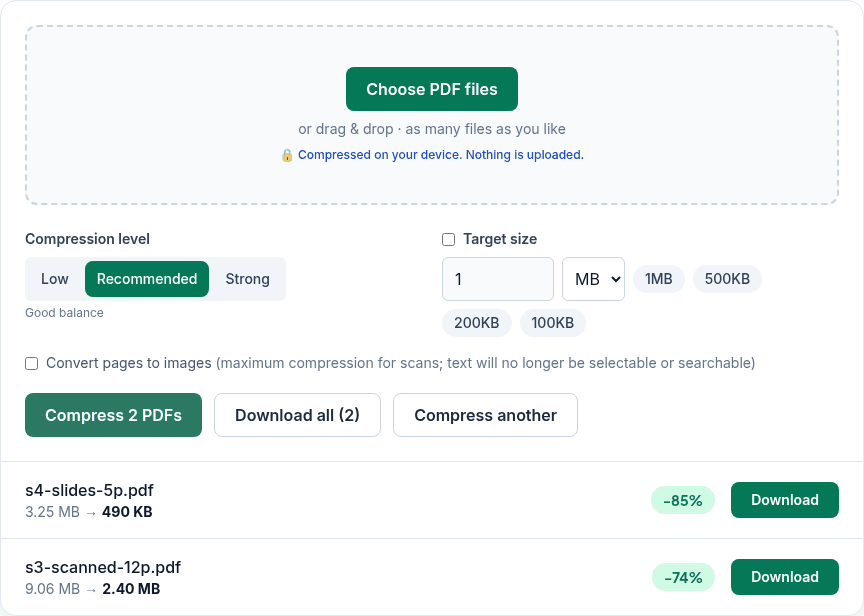
We ran the live tool on October 22, 2026 (PT) in headless Google Chrome 155 on Linux, with sample files we made for the test. The sizes below are what the tool reported; your files will differ, because the saving depends on how many images are inside.
| Test file | Recommended | Strong |
|---|---|---|
| 5-page slide deck with photos, 3.25 MB | 490 KB (−85%) | 113 KB |
| 8-page photo booklet, 13.57 MB | 1.72 MB | 365 KB |
| 12-page scanned document, 9.06 MB | 2.40 MB (−74%) | 1015 KB |
| 10-page text report, 11 KB | 9 KB | 9 KB |
Text-only PDFs barely shrink because there are no images to recompress. Text stayed selectable in every result above.
Preview's built-in option
Every Mac can already do this in Preview: open the PDF, choose File > Export and pick Reduce File Size from the Quartz Filter menu, or tick options such as Optimize images for screen and Save images as JPEG. Apple notes the PDF may be of lower quality and that the size depends on the options you choose. Apple's guide doesn't describe a way to aim for a specific size such as 500 KB, which is where the target size here helps. We couldn't measure Preview's results ourselves because our test machine isn't a Mac, so we don't compare numbers here.
When it can't get small enough
- Scans and photo-heavy files: tick Convert pages to images. It shrinks scans the most, but the text is no longer selectable or searchable.
- A hard limit, like 100 KB: if the tool says "We couldn't reach your target size", split the PDF with Split PDF and send the parts.
- Password-protected PDFs have to be unlocked first with Unlock PDF.
Privacy
The work happens in your browser tab, so your files aren't uploaded. The site counts page visits and sends one anonymous event per use (tool name, whether it worked, a file-size range). No event is sent when Global Privacy Control or Do Not Track is on. See the privacy policy.
Related tools
- Compress PDF: the main tool
- Compress PDF to 1MB
- Compress PDF to 100KB
- Merge PDF on Mac
- Split PDF on Mac
Sources
- Apple Preview User Guide, "Reduce the file size of a PDF in Preview on Mac": https://support.apple.com/guide/preview/reduce-the-file-size-of-a-pdf-prvw1509/mac
- PDFWrangle Compress PDF, live tool, checked October 22, 2026: https://pdfwrangle.com/compress-pdf