How to split a PDF on a Mac
- Drag the PDF from Finder onto the tool, or click Choose PDF.
- Pick a mode: Extract selected, Split each page, Every N pages, By ranges or Delete selected.
- Click page thumbnails (Shift-click selects a run, ⌘A selects all), or type ranges like
1-3, 5, 8-. - Click the main button, for example "Extract 2 pages" or "Split into 3 files".
- Click Download, or Download ZIP when there are several files.
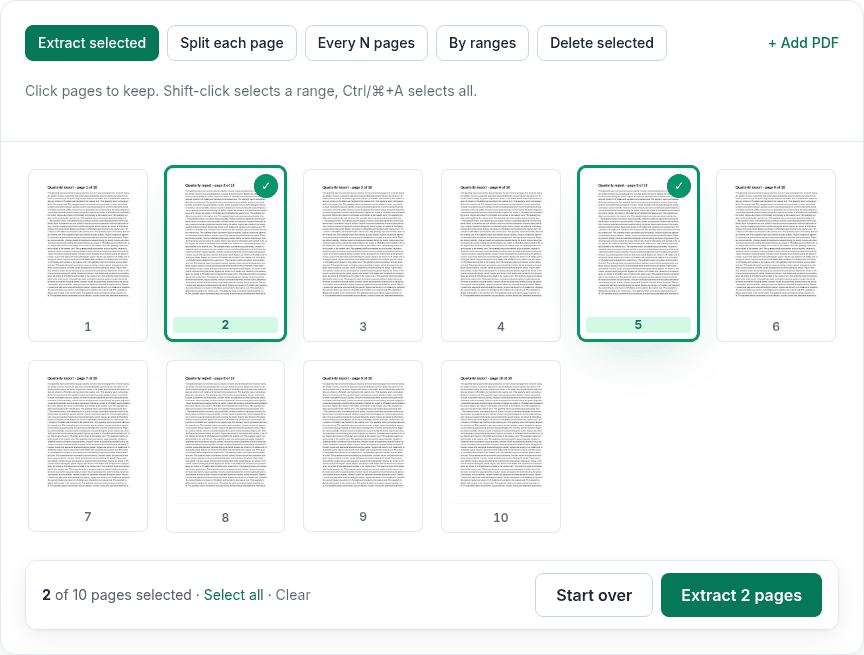
What we found when we tested it
We ran the live tool on October 22, 2026 (PT) in headless Google Chrome 155 on Linux, with sample files we made for the test. On a 10-page report, we selected two pages in Extract selected; the download was a 2-page PDF with those pages, text still selectable. The same steps worked by touch in iPhone 13 and Pixel 7 emulation. Our earlier test of every mode, on a 12-page file, is in the split PDF guide.
Preview vs this tool
| Job | Preview (built into macOS) | This tool |
|---|---|---|
| Pull out a few pages | View > Thumbnails, select pages, drag them to the desktop to make a new PDF | Extract selected, click the pages |
| Split pages 1–3, 4–7 and 8–end into three files | Repeat the drag for each group | By ranges: 1-3, 4-7, 8-, one ZIP |
| One file per page | Drag pages one by one | Split each page |
| Delete pages | Select and press Delete, which changes the file itself | Delete selected, which makes a new copy |
Limits
- By ranges makes one file per range. To get pages 1–3 and 8–10 in a single file, use Extract selected instead.
- Bookmarks and document properties don't carry over to the new files.
- Password-protected PDFs need Unlock PDF first.
Privacy
The work happens in your browser tab, so your files aren't uploaded. The site counts page visits and sends one anonymous event per use (tool name, whether it worked, a file-size range). No event is sent when Global Privacy Control or Do Not Track is on. See the privacy policy.
Related tools
- Split PDF: the main tool
- Extract pages from PDF
- Delete pages from PDF
- Merge PDF on Mac
- Compress PDF on Mac
Sources
- Apple Preview User Guide, "Add, delete, or move pages in a PDF in Preview on Mac": https://support.apple.com/guide/preview/add-delete-or-move-pages-prvw11793/mac
- PDFWrangle Split PDF, live tool, checked October 22, 2026: https://pdfwrangle.com/split-pdf