How to make a PDF from photos
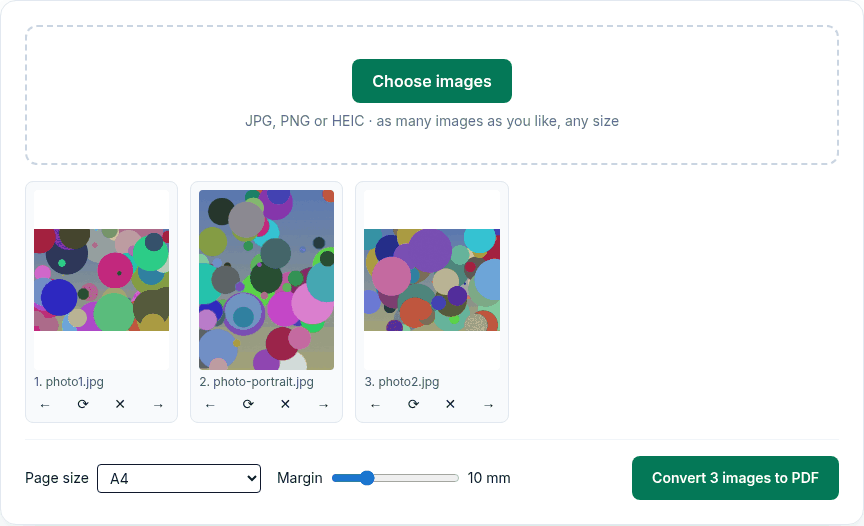
- Click Choose images and pick your photos. On a phone this opens your photo library.
- Put them in order with ← and →, turn a sideways photo with ⟳, and remove one with ✕.
- Pick Page size: A4, US Letter or Original image size, and a margin from 0 to 40 mm (10 mm by default).
- Click Convert N images to PDF. The browser saves
images.pdf.
What we found when we tested it
We ran the live tool on October 22, 2026 (PT) in headless Google Chrome 155 on Linux, with sample files we made for the test. We used three 4032×3024 JPG photos (about 4 MB each, the size a 12-megapixel phone camera produces) with a GPS position and camera model written into them, plus one portrait photo.
| What we checked | Result |
|---|---|
| 3 photos, A4, default 10 mm margin | 4.05 MB + 4.06 MB + 4.05 MB in, one 13.4 MB PDF out, in about 1 second |
| Resolution | Every photo was still 4032×3024 pixels inside the PDF. Nothing is downscaled. |
| Page orientation | Landscape photos got 842×595 pt pages (landscape A4), the portrait photo got 595×842 pt (portrait A4) |
| Location and camera data | The images inside the PDF have no EXIF block at all, so no GPS position, camera make or model |
| Phones | The same 4-image conversion also worked in iPhone 13 and Pixel 7 emulation, with the file chosen by touch |
We also ran it in Chrome's iPhone 13 and Pixel 7 device emulation with touch input; that is not the same as a real phone with Safari, so treat it as a strong hint rather than proof.
Photo PDFs are big: here's why
Because photos keep their full resolution, a PDF of phone photos is about as big as the photos added together. That's good for printing, but upload forms often have a limit. Run the PDF through Compress PDF afterwards: in our test, an 8-page PDF of 4032×3024 photos (13.57 MB) came out at 1.72 MB on Recommended and 365 KB on Strong.
What this tool won't do
- It doesn't crop, straighten or "scan-enhance" photos of paper documents. Each photo goes onto the page as it is.
- It doesn't recognise text (no OCR), so a photo of a letter becomes a picture of a letter, not searchable text.
- It doesn't keep the date or location of each photo. Keep the originals if you need them.
- Every photo is stored as a JPEG inside the PDF, including PNGs.
Doing it without a website
Phones and computers can also print photos to PDF. On an iPhone, Apple's guide shows Share and then Print for a photo. That route works well for one or two photos; this tool is quicker when you need to set the order, the page size and the margin for a batch.
Privacy
The work happens in your browser tab, so your files aren't uploaded. The site counts page visits and sends one anonymous event per use (tool name, whether it worked, a file-size range). No event is sent when Global Privacy Control or Do Not Track is on. See the privacy policy.
Related tools
- Image to PDF: the main tool, for any JPG, PNG or HEIC
- Photo to PDF on iPhone: HEIC photos straight from the library
- Screenshot to PDF
- Compress PDF: if the photo PDF is too big
- Merge PDF
Sources
- Apple iPhone User Guide, "View, share, and print photos on iPhone": https://support.apple.com/guide/iphone/view-share-and-print-photos-iph3d314a6f/ios
- PDFWrangle Image to PDF, live tool, checked October 22, 2026: https://pdfwrangle.com/image-to-pdf