How to merge PDFs on iPhone
- Tap Choose PDFs and pick all the PDFs you want to combine from the Files picker.
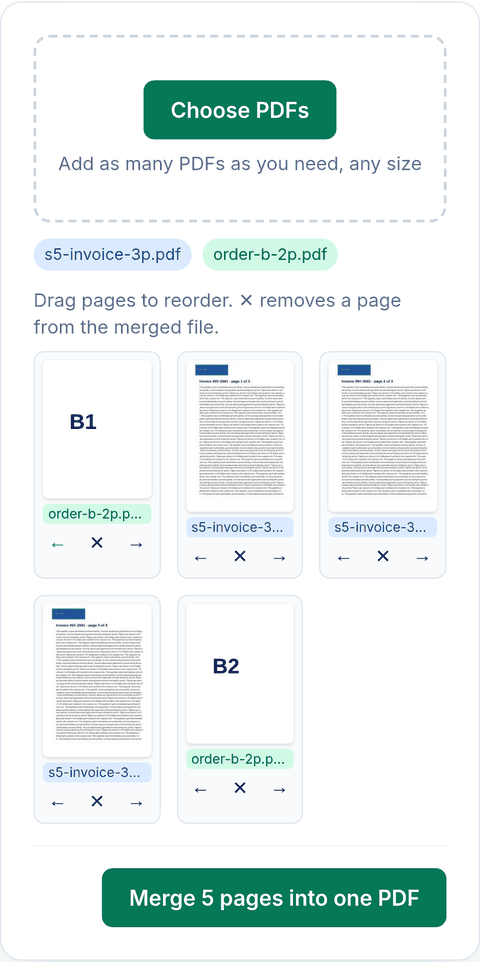
- Every page shows as a thumbnail, labelled with its file name and page number.
- Tap ← or → under a page to move it one place. Tap ✕ to leave a page out.
- Tap Merge N pages into one PDF. Safari saves
merged.pdf; unless you've changed the download location, it's in Downloads in the Files app.
What we found when we tested it
We ran the live tool on October 22, 2026 (PT) in Google Chrome 155 on Linux, with sample files we made for the test. All of our phone tests used Chrome's iPhone 13 device emulation with real touch events (and Pixel 7 for Android). Our test machine can't run Safari or Apple's WebKit engine, so we have not tested on a real iPhone. Treat these results as a strong hint, not proof.
| Test | Files in | Result |
|---|---|---|
| Two PDFs, cover page moved to the front | 3-page invoice (8,609 bytes) and a 2-page PDF (1,918 bytes), chosen together | 5 pages, 15,757 bytes. Reading the text back, the order was B1, invoice pages 1–3, B2, as on screen. |
| Pages of one PDF only | 4-page PDF | Moved page 4 to the front and removed page 2: a 3-page file (pages 4, 1, 3), 1,411 bytes. So you can reorder a single PDF here too. |
| Pages from two files interleaved | 4-page and 2-page PDF | p1, B1, p2, p3, p4, B2 as arranged: 6 pages, 2,120 bytes. |
| Large files | A 12-page scan (9.06 MB) and an 8-page photo PDF (13.57 MB) | 20 pages, 22.6 MB. The download started about 0.4 seconds after tapping Merge, on a desktop processor; a real phone will be slower. |
| Android | Same files | Same page order and file sizes in Pixel 7 emulation. |
Pages are copied into the new file as they are, so text stays selectable and nothing is recompressed. That is also why the merged file is about as big as the originals added together.
The built-in way: Preview on iPhone
Apple's iPhone User Guide describes how to do this in the Preview app: open a PDF, tap the page count to show thumbnails, touch and hold a thumbnail and tap Insert from File to add another PDF or image. You can delete a page the same way, and move pages by dragging their thumbnails. That edits the PDF you opened, so make a copy first if you want to keep the original.
This page is quicker when you have several PDFs to combine at once, want to see every page before you merge, or want to leave the originals untouched.
What this tool won't do
- It only takes PDFs. To add photos, turn them into a PDF first with Photo to PDF on iPhone, then merge.
- It doesn't make the result smaller. If the merged PDF is too big to email, run it through Compress PDF to 2MB.
- It doesn't add page numbers, a table of contents or a cover page.
Privacy
The work happens in your browser tab, so your files aren't uploaded. The site counts page visits and sends one anonymous event per use (tool name, whether it worked, a file-size range). No event is sent when Global Privacy Control or Do Not Track is on. See the privacy policy.
Related tools
- Merge PDF: the main tool
- Merge PDF on Mac
- Reorder PDF pages
- Sign a PDF on iPhone
- Photo to PDF on iPhone
Sources
- Apple iPhone User Guide, "Add, delete, rotate, move, or crop PDF pages in Preview on iPhone": https://support.apple.com/guide/iphone/add-delete-rotate-move-or-crop-pdf-pages-iphbf4977cff/ios
- Apple iPhone User Guide, "Find your downloaded files on iPhone": https://support.apple.com/guide/iphone/find-your-downloaded-files-on-iphone-iphc9cd7266c/ios
- PDFWrangle Merge PDF, live tool, checked October 22, 2026: https://pdfwrangle.com/merge-pdf