How to sign a PDF on iPhone
- Draw your signature in the box with one finger. The page doesn't scroll while you draw. Tap Undo or Clear to try again, or tap Type to use your typed name in a handwriting font.
- Tap Choose PDF. Your iPhone shows the Files picker, so a PDF you saved from Mail or Safari is usually in Downloads or On My iPhone.
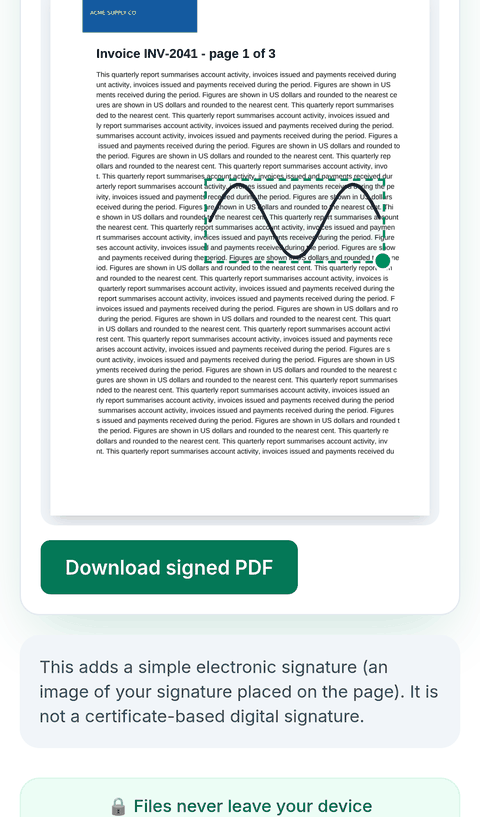
- If the PDF has several pages, pick the page under Page … of …. The signature starts near the lower right of the page.
- Drag the signature with your finger to move it, and drag the round handle at its corner to make it bigger or smaller.
- Tap Download signed PDF. The copy is called
name-signed.pdf; the original isn't changed. Unless you've changed Safari's download location, it's in the Downloads folder in the Files app.

What we found when we tested it
We ran the live tool on October 22, 2026 (PT) in Google Chrome 155 on Linux, with sample files we made for the test. All of our phone tests used Chrome's iPhone 13 device emulation with real touch events (and Pixel 7 for Android). Our test machine can't run Safari or Apple's WebKit engine, so we have not tested on a real iPhone. Treat these results as a strong hint, not proof. We signed page 1 of a 3-page invoice (8,609 bytes).
| Check | Result |
|---|---|
| Drawing with a finger | The stroke appeared in the box and the page stayed still: the scroll position was the same before and after drawing. |
| Transparent PNG | Download transparent PNG worked after drawing and saved signature.png. |
| Moving the signature | Dragged by touch from the lower right to the upper middle of the page. In the downloaded PDF the signature was in the new place. |
| Resizing | Dragging the corner handle made the signature box about 1.6 times wider (from 92 to 146 pixels on screen) and kept its proportions. The signature in the PDF was larger to match. |
| Downloaded file | s5-invoice-3p-signed.pdf, 24,178 bytes, still 3 pages. Text on the page could still be selected. |
| Certificate signature | None: pdfsig found no signatures. It's an image, not a digital signature. |
| Android | The same steps worked in Pixel 7 emulation (22,098-byte signed file). |
Your iPhone can sign PDFs too
You don't need a website for this. Apple's iPhone User Guide describes opening the document (in the Files app if prompted), tapping the Markup button, then Add Signature: you sign with your finger, tap Done and drag the signature where it should go. You can resize it by dragging the blue dots, and your iPhone saves the signature for next time. Apple's Preview app on iPhone has its own guide for filling out and signing PDF forms.
This page is useful when you want a typed signature in a handwriting font, a transparent PNG of your signature to reuse elsewhere, or when you're signing on a phone you don't want to save a signature on: nothing is kept after you close the tab.
Tips for a neater finger signature
- Draw it large across the whole box, then shrink it on the page with the corner handle. Small finger signatures look shaky.
- Turn your iPhone sideways if you want a wider box to draw in.
- Pick Navy or Blue ink if the person who asked wants to see that it was signed rather than printed.
Know what this signature is
- It's a simple electronic signature: a picture on the page, with no signing certificate or tamper seal.
- If someone sent you a link from an e-signature service, sign there instead; they usually need their own record.
- One signature per download. To sign several pages, download, choose the signed file again and add the next one.
- It doesn't fill in form fields or add dates or text.
Privacy
The work happens in your browser tab, so your files aren't uploaded. The site counts page visits and sends one anonymous event per use (tool name, whether it worked, a file-size range). No event is sent when Global Privacy Control or Do Not Track is on. See the privacy policy.
Related tools
- Sign PDF: the main tool
- Sign PDF on Mac
- Merge PDFs on iPhone
- Photo to PDF on iPhone
- Compress PDF to 2MB: if the signed file is too big to send
Sources
- Apple iPhone User Guide, "Fill out forms, sign documents, and create signatures on iPhone": https://support.apple.com/guide/iphone/fill-forms-sign-documents-create-signatures-iph1d3607e5c/ios
- Apple iPhone User Guide, "Fill out and sign PDF forms in Preview on iPhone": https://support.apple.com/guide/iphone/fill-out-and-sign-pdf-forms-iphd7e3c0c74/ios
- Apple iPhone User Guide, "Find your downloaded files on iPhone": https://support.apple.com/guide/iphone/find-your-downloaded-files-on-iphone-iphc9cd7266c/ios
- PDFWrangle Sign PDF, live tool, checked October 22, 2026: https://pdfwrangle.com/sign-pdf