How to sign a PDF on a Mac
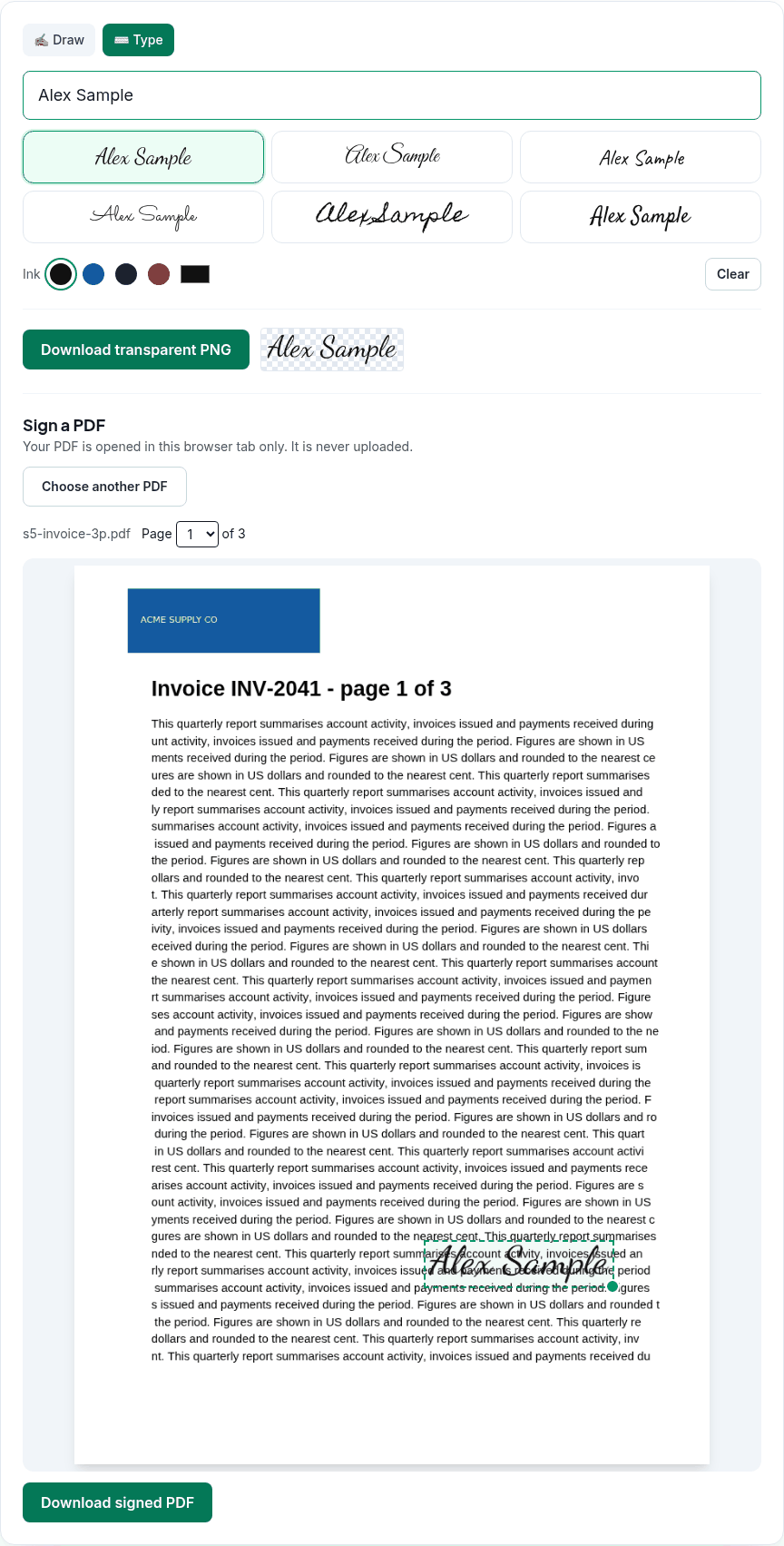
- Draw your signature in the box with the trackpad or mouse, or click Type, enter your name and choose one of six fonts.
- Pick an ink colour: black, blue, navy, red or any custom colour.
- Under Sign a PDF, click Choose PDF, and choose the page from Page … of ….
- Drag the signature box into place and drag its corner handle to resize it.
- Click Download signed PDF. The copy is saved as
name-signed.pdf; the original isn't changed.
What we found when we tested it
We ran the live tool on October 22, 2026 (PT) in headless Google Chrome 155 on Linux, with sample files we made for the test. We signed page 1 of a 3-page invoice we made.
| Check | Result |
|---|---|
| Signature | One image added to page 1; pages 2 and 3 unchanged |
| Rest of the document | Text still selectable; no annotations or form fields added |
| Certificate signature | None: 0 signature fields. It's an image, not a digital signature. |
| Touch | A signature drawn by touch in iPhone 13 and Pixel 7 emulation was placed and downloaded the same way |
Preview can do this too
Preview has a signature tool in the Markup toolbar. Apple's guide describes creating a signature with the trackpad, with your Mac's built-in camera (sign on white paper and hold it up), or on an iPhone or iPad, then dragging and resizing it on the page, and the signature can sync through iCloud. If you sign on the same Mac regularly, that's convenient. This tool is handy on a Mac you don't usually use, since nothing is saved to the computer, or when you want a typed signature in a handwriting font or a transparent PNG of your signature (Download transparent PNG).
Know what this signature is
- It's a simple electronic signature: a picture on the page. There's no signing certificate and no tamper seal, so it isn't a "digital signature" in the technical sense.
- Whether that is acceptable depends on whoever asked you to sign. If they sent you a link from an e-signature service, sign there instead.
- One signature per download. To sign several pages, download, open the signed file again and add the next one.
- It doesn't fill form fields or add dates or text.
Privacy
The work happens in your browser tab, so your files aren't uploaded. The site counts page visits and sends one anonymous event per use (tool name, whether it worked, a file-size range). No event is sent when Global Privacy Control or Do Not Track is on. See the privacy policy.
Related tools
- Sign PDF: the main tool
- Merge PDF on Mac
- Compress PDF on Mac
- Split PDF on Mac
- Unlock PDF: if the PDF needs a password
Sources
- Apple Preview User Guide, "Fill out and sign PDF forms in Preview on Mac": https://support.apple.com/guide/preview/fill-out-and-sign-pdf-forms-prvw35725/mac
- PDFWrangle Sign PDF, live tool, checked October 22, 2026: https://pdfwrangle.com/sign-pdf