How to turn screenshots into a PDF
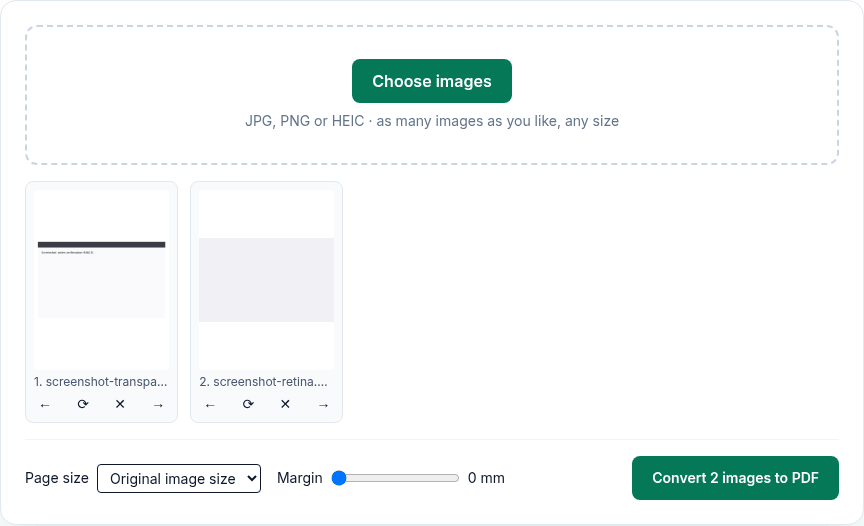
- Click Choose images and select your screenshots, or drop them on the page.
- Put them in order with ← and →.
- Set Page size to Original image size and drag Margin to 0 mm. The tool starts on A4 with a 10 mm margin, so change both.
- Click Convert N images to PDF.
What we found when we tested it
We ran the live tool on October 22, 2026 (PT) in headless Google Chrome 155 on Linux, with sample files we made for the test. We used a 1440×900 PNG screenshot with a transparent area and a 2880×1800 PNG, the size a Retina display produces.
| What we checked | Result |
|---|---|
| Page size with Original image size, 0 mm | 1440×900 px became a 1080×675 pt page; 2880×1800 px became 2160×1350 pt. That's 0.75 pt per pixel, so the screenshot fills the page exactly. |
| Resolution | The images inside were still 1440×900 and 2880×1800. Text in the screenshot stays as sharp as the original. |
| File size | Both screenshots together: a 55 KB PDF |
| Transparent areas | Turned white (255, 255, 255 in the output) |
| Format inside the PDF | JPEG. PNGs are converted, so very fine lines can soften slightly. |
A Retina screenshot makes a page twice as wide as a normal one. It looks the same on screen; it just has more pixels. If you'll print the PDF, choose A4 or US Letter instead so every page has the same paper size.
Taking the screenshots first
- Mac: Shift-Command-3 captures the whole screen, Shift-Command-4 a selected area, and Shift-Command-5 opens the Screenshot app. Screenshots are saved to the desktop. On macOS Tahoe 26 and later, Apple says the format is PNG (SDR) or HEIF (HDR); both work here.
- Windows: Windows + Shift + S opens Snipping Tool, and Microsoft says snips are saved automatically to your Screenshots folder.
Limits
- The tool doesn't keep "Original image size" and 0 mm as your default. Set them each time.
- Text in screenshots isn't searchable or selectable in the PDF (no OCR).
- Screenshots aren't cropped. Crop them before adding if you need to hide part of the screen. To hide something already in a PDF, use a redaction tool, not a crop.
Privacy
The work happens in your browser tab, so your files aren't uploaded. The site counts page visits and sends one anonymous event per use (tool name, whether it worked, a file-size range). No event is sent when Global Privacy Control or Do Not Track is on. See the privacy policy.
Related tools
- Image to PDF: the main tool
- PNG to PDF
- Photo to PDF
- Merge PDF: add the screenshots to an existing PDF
- Compress PDF
Sources
- Apple Support, "How to take a screenshot on your Mac": https://support.apple.com/en-us/102646
- Microsoft Support, "Use Snipping Tool to capture screenshots": https://support.microsoft.com/en-us/windows/use-snipping-tool-to-capture-screenshots-00246869-1843-655f-f220-97299b865f6b
- PDFWrangle Image to PDF, live tool, checked October 22, 2026: https://pdfwrangle.com/image-to-pdf